Heat Map
This documentation shows how to use Heat Map in Traveller Safety.
1. Access Heat Map
-
Navigate to the Traveller Safety section.
-
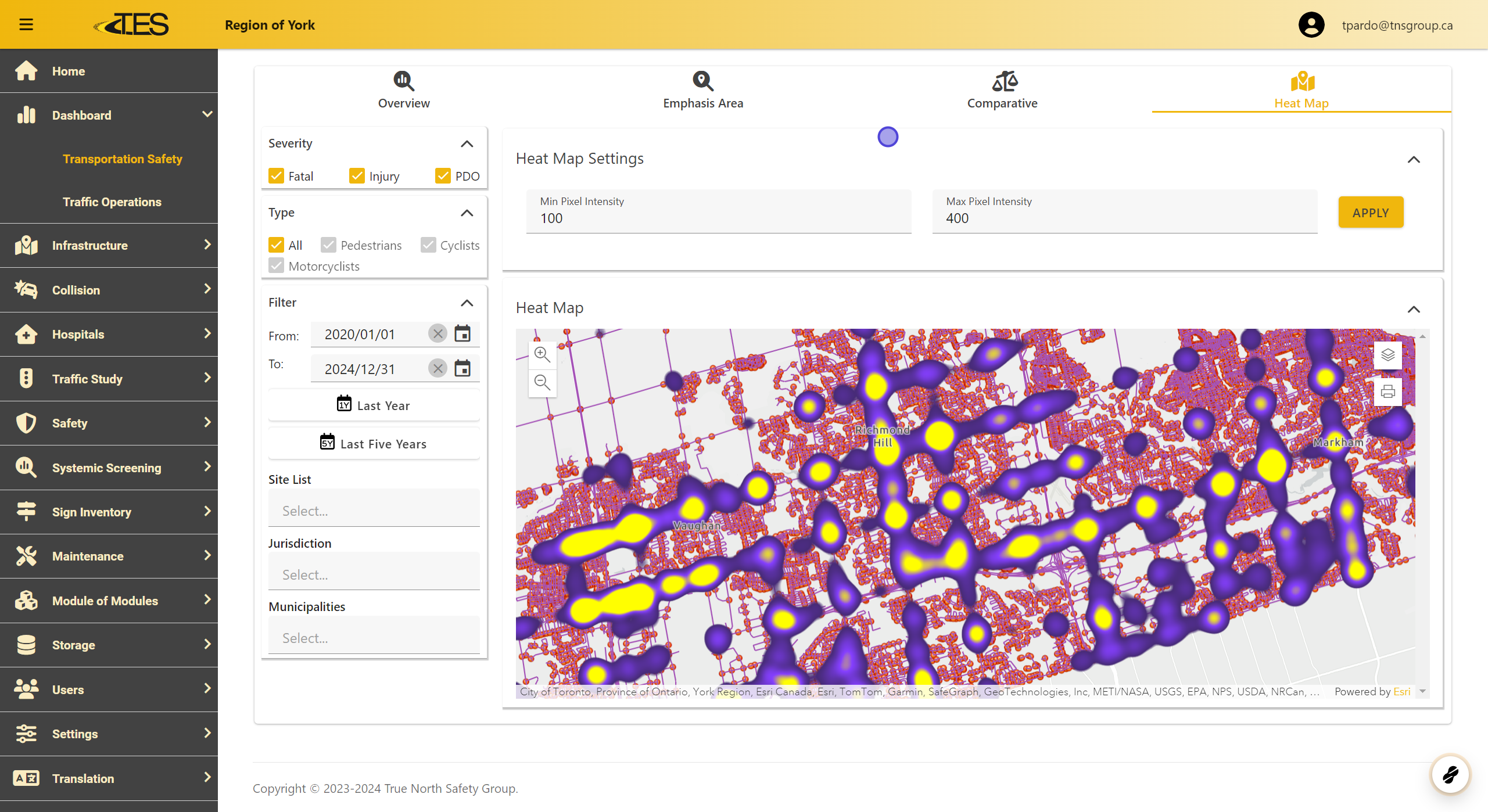
Select the Heat Map tab. The map will load immediately and display collision data visually.
2. Adjust the Minimum and Maximum Pixel Intensity
You can modify the pixel intensity settings to refine the data displayed on the heat map:
-
Minimum Pixel Intensity: The threshold for heat points to appear on the map.
-
Maximum Pixel Intensity: The threshold for heat points to reach their maximum visibility.
Use the sliders or input values directly to customize the intensity.

3. Filter Collisions by Severity, Type, and Date
To filter the collisions displayed on the heat map:
-
Severity: Select from Fatal , Injury , or PDO (Property Damage Only).
-
Type: Choose specific categories such as Pedestrians , Cyclists , or Motorcyclists .
-
Date Range: Use the calendar tool or pre-defined ranges like "Last Year" or "Last Five Years."

4. Filter Collisions by Location
You can further narrow down collision data based on location:
-
Site List: Choose specific sites.
-
Jurisdiction: Filter by administrative regions.
-
Municipalities: Focus on a specific municipality for detailed insights.
This helps to analyze collision data specific to your area of interest.

5. Printing the Heat Map
To print the heat map:
-
Click the Print button located on the map toolbar.
-
Choose between printing the map only or including additional layout options.
